How to Convert a Quote Into an Invoice Without Retyping It
Re-keying an accepted quote into an invoice is where line items get dropped, prices get mistyped, and tax rates get forgotten. Here's the one-click way to avoid it, plus what to check manually if you're stuck retyping.
RevExOS
Q2C Consulting
A client accepts your quote. Now someone has to open an invoice tool, create a new document, and type in the same business name, the same client address, the same line items, the same tax rate, all over again. It feels like a two-minute task, so nobody treats it as a risk. It's also the exact point in the billing process where a wrong number is most likely to slip in - not because anyone is careless, but because retyping a list of numbers you already typed once, correctly, an hour ago is a genuinely bad task for a human to do accurately.
Why Re-Keying a Quote Is a Common Source of Invoice Errors
Three failure modes show up constantly when quotes are manually converted into invoices:
Wrong line item copied. A quote with 8 line items and an invoice with 8 line items look identical at a glance even when line 4 got skipped and line 4 from a different quote got pasted in by mistake. Nobody proofreads a re-typed invoice against the original quote line by line before sending it.
Price typo. Transposing digits when retyping a rate - $1,250 becomes $1,520 - is one of the most common manual-entry errors in any billing workflow, and it's invisible until either the client flags it or the total doesn't reconcile with what was verbally agreed.
Forgotten tax rate. The quote had a tax rate applied. The invoice tool defaults to 0% or to whatever the last invoice used. If nobody manually re-enters the correct rate, the invoice total is wrong, and if it's an underbill, that's revenue that doesn't get collected until someone catches it and sends a correction - which delays payment and looks unprofessional to the client.
Every one of these is preventable, not through more careful retyping, but by not retyping at all.
The RevExOS Flow: Quote to Invoice in One Click
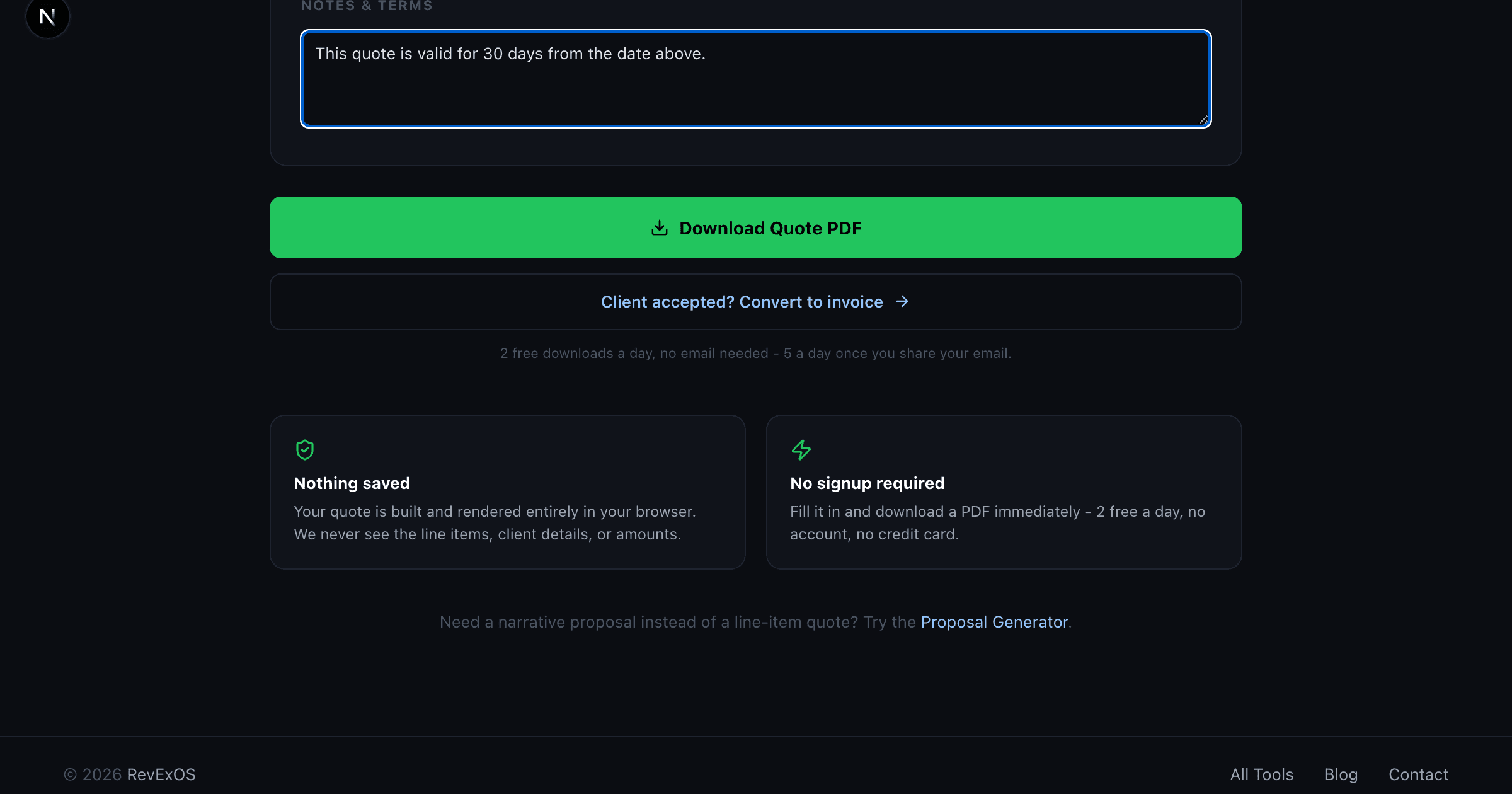
The Quote & Estimate Generator has a button under the download button labeled "Client accepted? Convert to invoice." Here's exactly what happens when you use it.
Step 1: Build the Quote
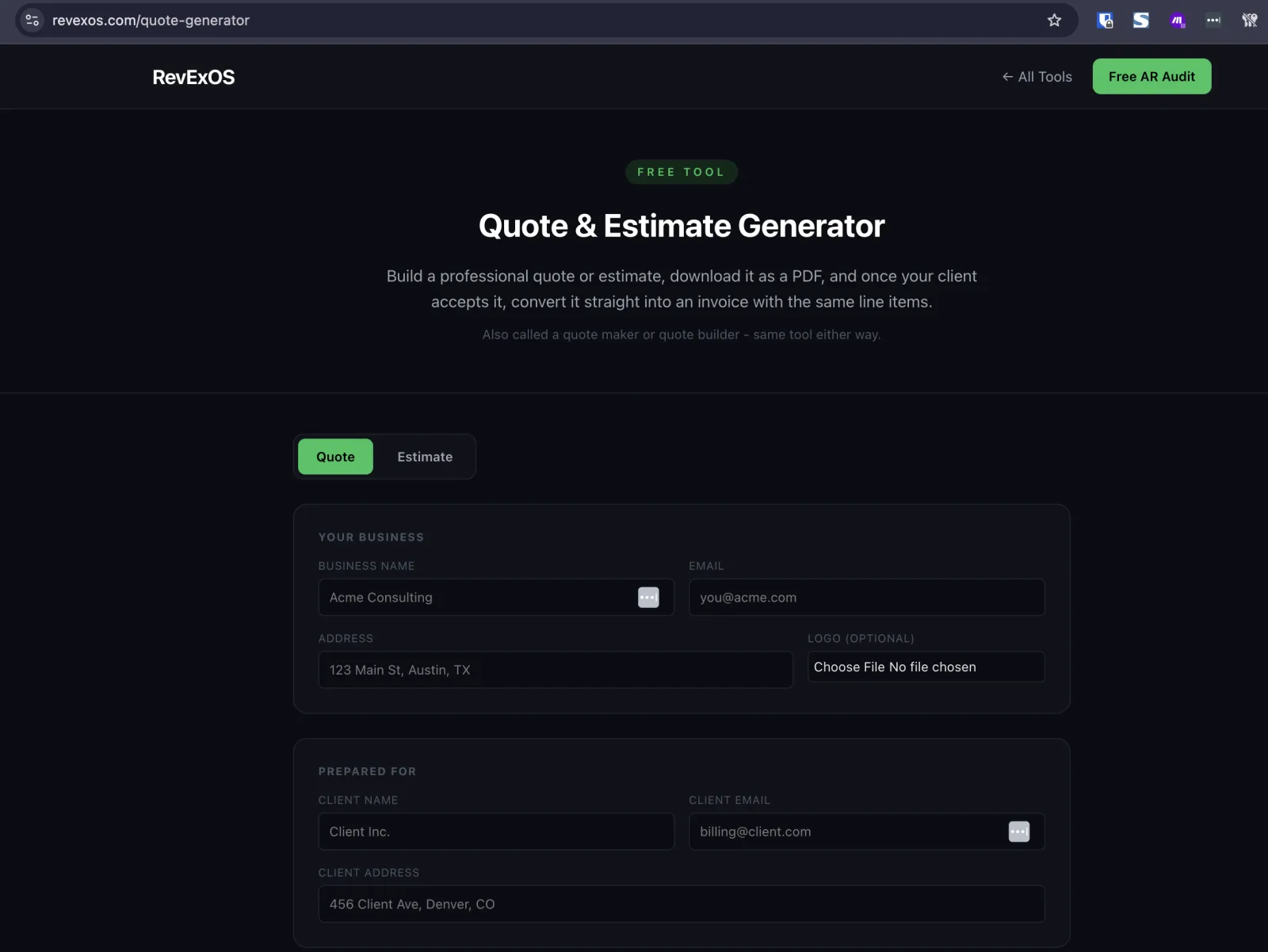
Fill in your business info (name, email, address, logo), the client's info, a quote number, the issue date, and a "Valid Until" date. Add your line items - description, quantity, rate - and the amount for each calculates automatically as you type. Set your tax rate and currency, add any notes or terms, and download the PDF. Send it to the client the way you normally would.
Step 2: Client Accepts
This part happens outside the tool - a reply email, a verbal yes on a call, a signed copy back. Nothing about the tool changes here.
Step 3: Click "Convert to Invoice"
Come back to the same quote in your browser (as long as you haven't cleared the tab or the form) and click "Client accepted? Convert to invoice." That single click carries the business info, client info, line items, tax rate, and currency straight into the Invoice Generator, already filled in.
Step 4: Review and Download
The Invoice Generator opens pre-filled. Add an invoice number and due date - since a quote and an invoice have different date fields by nature, those aren't carried over automatically - do a final glance at the line items (they're already correct, since nothing was retyped), and download the invoice PDF.
That's the entire workflow. No line item is typed twice.
What Actually Happens Under the Hood
For anyone who wants to trust this claim rather than take it on faith: when you click convert, the tool writes a small JSON object - your business info, client info, line items array, tax rate, and currency - into the browser's sessionStorage, under a single key. sessionStorage is a browser API, not a server call. The data never leaves your machine; it's not transmitted anywhere, logged anywhere, or written to a database. It exists only in that one browser tab, for that one browsing session.
The moment you navigate to the Invoice Generator page (which happens immediately, as part of the same click), that page reads the same key out of sessionStorage, uses it to pre-fill its own form state, and the handoff is done. If you close the tab, refresh in a way that clears session state, or open the Invoice Generator in a different tab without going through the button, that data is gone - there's nothing persistent to leak, because nothing was ever saved outside that one browser session in the first place.
This is the same "nothing sent to or stored on a server" model both the Quote Generator and Invoice Generator use independently: the PDF itself is rendered client-side with @react-pdf/renderer, and the same is true of the handoff between them. If you're evaluating whether it's safe to use for client-confidential pricing, the honest technical answer is that your line items and amounts never touch a server at any point in the flow, quote or invoice.
If You're Using a Different Quote Tool: What to Double-Check When Retyping
Not everyone building a quote today is starting from the RevExOS tool, and if you're on Billdu, Refrens, Taskip, invoice-generator.com, or anything else, there's currently no automatic handoff - you'll be retyping the quote into whatever invoice tool you use. If that's your situation, check these five things every time, in this order:
- Line item count. Before typing anything, count the line items on the quote PDF and confirm the invoice has the same number when you're done. This catches a dropped or duplicated line immediately instead of after the invoice is sent.
- Rate and quantity, not just the amount. Compare rate × quantity against the line total on the quote, not just the visual total at the bottom. A single mistyped rate can still produce a plausible-looking invoice total if you also mistype the quantity to compensate, which happens more often than you'd expect when someone's eyes jump around a PDF.
- Tax rate. Confirm the invoice's tax rate field matches the quote's, not the invoice tool's default. This is the single most common source of underbilling in a manual quote-to-invoice conversion.
- Currency. If you quote internationally, confirm the invoice is created in the same currency as the quote. A quote in EUR converted into a USD invoice at the same numeric value is a real error that happens when a form defaults to your account's home currency.
- Client billing details. The person who accepted the quote isn't always the person who should receive the invoice - confirm the invoice's bill-to name, email, and address match what the client actually wants on the invoice, not just what was on the quote.
None of this is complicated. It's tedious, which is exactly why it's error-prone - tedious, repetitive tasks are where attention lapses, not complex ones.
The Bottom Line
An accepted quote and the invoice that follows it should contain identical line items, by definition - the client agreed to a specific scope at a specific price, and the invoice is just billing for that same scope. Any manual re-entry step between the two is a chance for the invoice to drift from what was actually agreed. The fix isn't a better retyping process. It's not retyping.
Try the full flow yourself: build a quote in the Quote & Estimate Generator, and when you're ready, use the convert button to see the pre-filled Invoice Generator firsthand.
Frequently Asked Questions
- Does converting a quote to an invoice send my data to a server?
- No. The handoff uses your browser's session storage only, then loads directly into the Invoice Generator's form fields.
- What fields carry over automatically?
- Business info, client info, every line item, tax rate, and currency. Invoice number and dates are left for you to set since they're supposed to be new.
- Why do quote-to-invoice mismatches cause payment delays?
- A client's AP team will often kick back an invoice that doesn't match the accepted quote, which pushes the invoice into their next payment cycle instead of the current one.