How to Create a Professional Invoice in 2 Minutes (Free, No Signup)
A literal step-by-step walkthrough for building and downloading a professional invoice PDF in under 2 minutes, plus the small mistakes that make invoices look unprofessional or get paid slower.
RevExOS
Q2C Consulting
You do not need software, a login, or a template file sitting in your downloads folder to send a professional invoice. This walkthrough uses this site's own free Invoice Generator, fills in every field in order, and gets you a downloaded PDF in under two minutes. No account, no credit card, nothing saved on a server.
Here is the exact sequence.
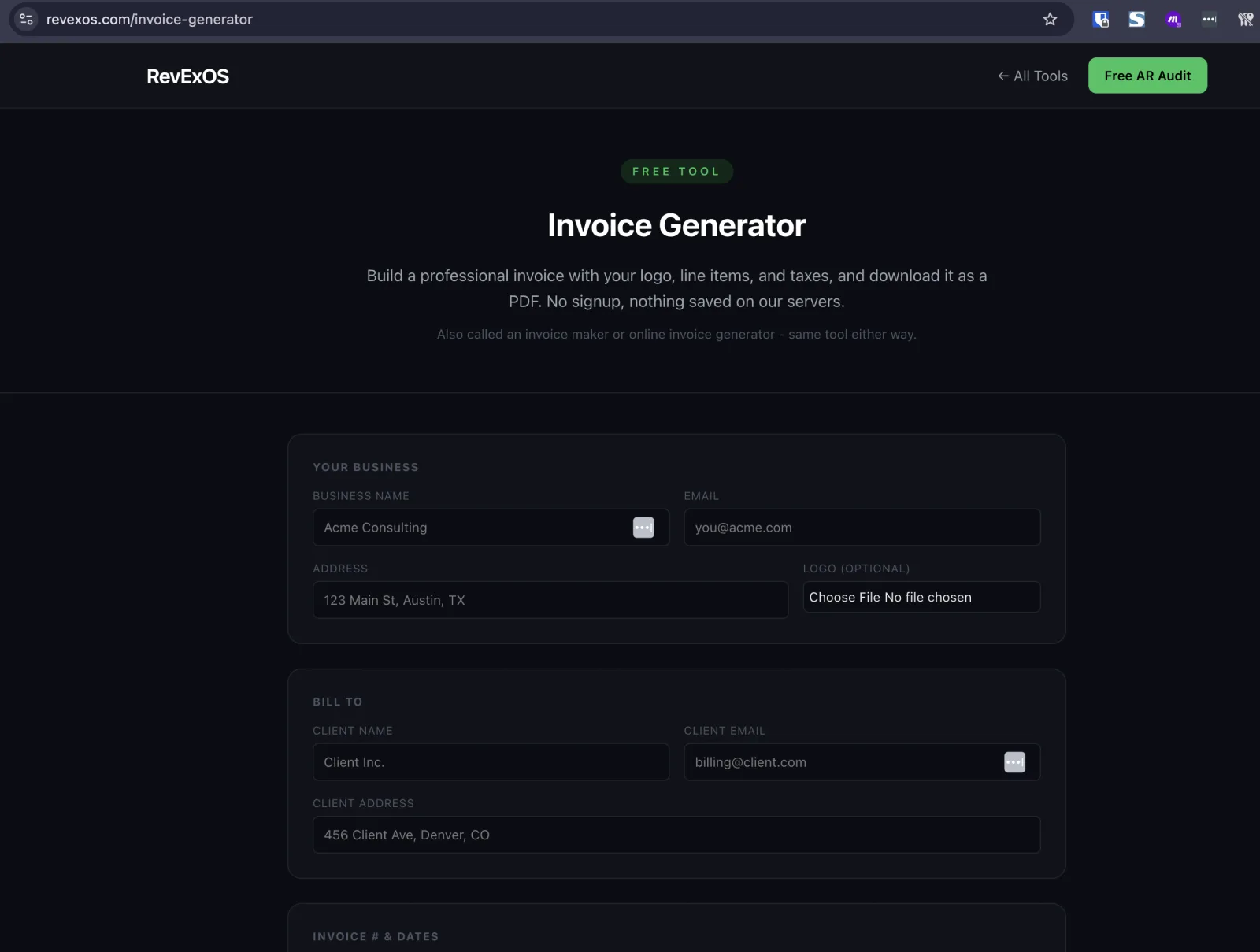
Step 1: Add Your Business Info (20 seconds)
Open the Invoice Generator. The first section is your business details:
- Business name. The name your client already knows you by, whatever is on your other invoices or your website.
- Email. Where your client can reach you with questions.
- Address. Your business address. If you work from home and do not want to put your home address on a document a client keeps on file, a PO box or a business address service works fine here.
- Logo (optional). Upload one if you have it. A logo is not required, and a plain invoice with no logo still looks perfectly professional. Do not skip the invoice to go find or create a logo, that is exactly the kind of task that turns a 2-minute invoice into a 20-minute one.
Step 2: Add the "Bill To" Client Info (20 seconds)
This is who the invoice is addressed to:
- Client name. Use the actual company name if you are billing a business, not just your day-to-day contact's name.
- Client email. This matters more than it looks like it should if you plan to email the PDF directly, since it is the address you will actually send to.
- Client address. Include this even for a small, informal client. An invoice without a billing address looks unfinished, and some clients' own AP departments will bounce it back for exactly that reason.
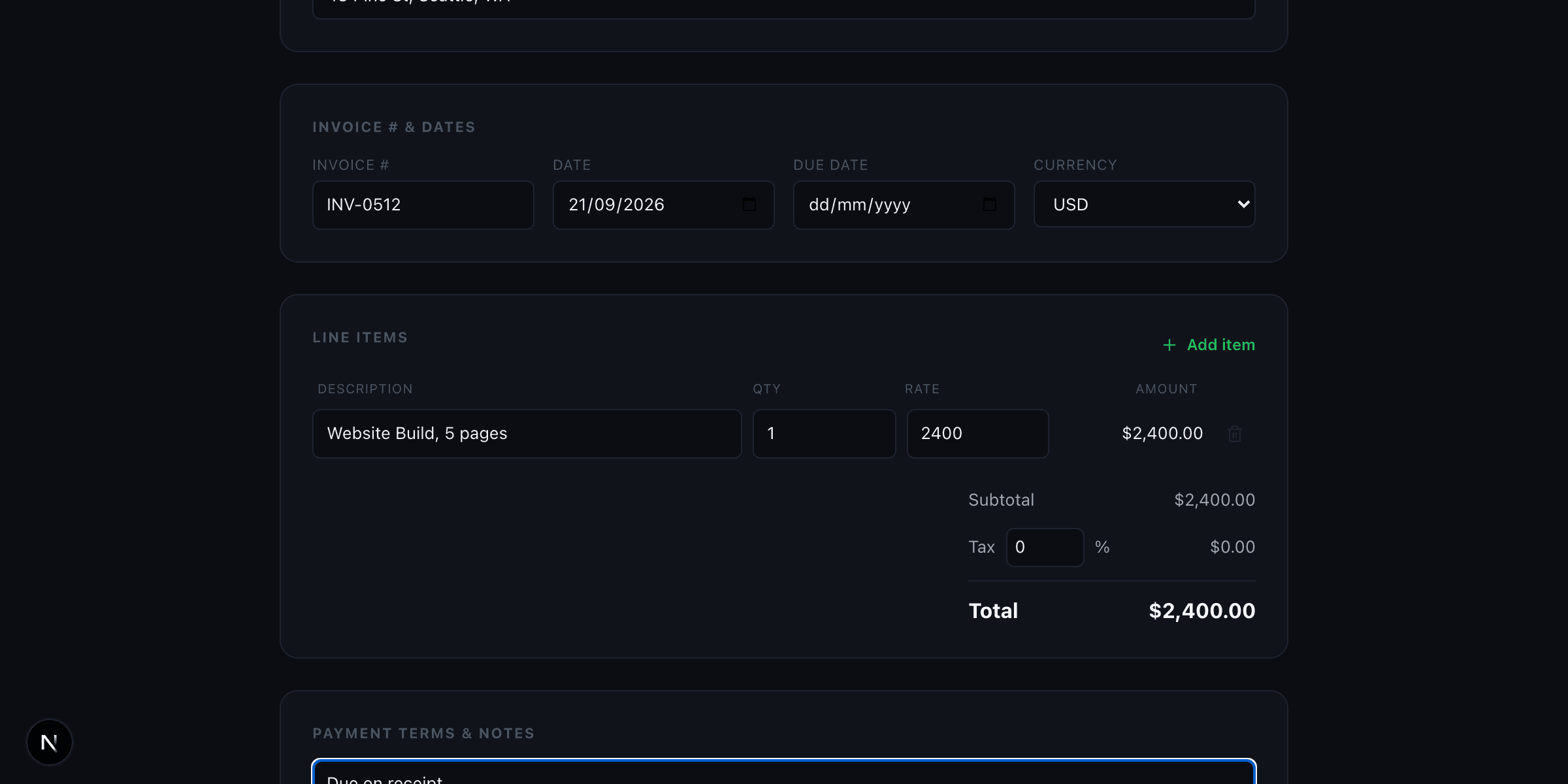
Step 3: Invoice Number and Dates (15 seconds)
- Invoice number. Use a sequential system, even something as simple as
INV-001,INV-002. Do not leave this blank or reuse a number. A missing or duplicate invoice number is one of the fastest ways to get an invoice rejected by a client's accounts payable process, and it makes your own records impossible to reconcile later. - Invoice date. Defaults to today. Leave it unless you are backdating for a specific reason.
- Due date. Do not skip this. An invoice with no due date reads as "whenever," and clients pay net-30-with-a-clear-date invoices faster than ones that never actually said when payment was expected. Net 15 or Net 30 from the invoice date is standard; pick whichever matches what you agreed with the client.
Step 4: Currency (5 seconds)
Pick from USD, EUR, GBP, INR, CAD, or AUD. Match whatever currency you quoted the work in, not your own home currency if they differ, mismatches here are a common source of confused clients and delayed payment while everyone figures out who was supposed to convert what.
Step 5: Line Items (40 seconds for 2-3 items)
For each line:
- Description. Be specific. "Consulting services" is vague enough that a client's AP team may ask for clarification before paying, which adds days. "Website redesign - homepage and 3 interior pages" tells them exactly what they are paying for.
- Quantity. Hours, units, or 1 for a flat fee.
- Rate. Your per-unit or per-hour price.
The amount column calculates automatically from quantity times rate, you do not touch it. Add as many line items as the work needs; there is no meaningful limit for a normal invoice.
Step 6: Tax Rate and Payment Terms (15 seconds)
- Tax rate. Enter your applicable rate as a percentage if you charge tax (sales tax, VAT, GST). Leave it at 0 if you do not.
- Payment terms / notes. This is where you put anything a client needs to actually pay you: bank details, a payment link, a note about late fees, or simply "Net 30. Thank you for your business." Do not leave this blank, an invoice with no payment instructions puts the burden on the client to ask you how to pay, which is a delay you control and can eliminate.
Step 7: Download (5 seconds)
Click Download Invoice PDF. The PDF renders in your browser and downloads immediately, nothing is sent to a server in the process. That is the whole invoice, ready to attach to an email.
Total elapsed time for a simple invoice with two or three line items: under two minutes once you have done it once. The first invoice you ever create with any tool takes a bit longer just from reading the labels; every one after that is genuinely fast.
Common Mistakes That Make an Invoice Look Unprofessional (or Get Paid Slower)
No invoice number. Beyond looking unprofessional, this makes it impossible for anyone, including you, to reference "invoice 4471" in a follow-up email six weeks later. Every invoice needs a number, sequential and unique.
No due date. "Please pay soon" is not a due date. Clients that are not told exactly when payment is expected tend to deprioritize it behind invoices from vendors who did specify a date.
No payment terms or instructions. If your invoice does not say how to pay, whether that is a bank transfer, a payment link, or a check address, you have added a step where the client has to email you back before they can pay at all.
Vague line item descriptions. "Services rendered" tells an AP department nothing and often triggers a request for more detail before the invoice is approved for payment, adding days to your collection cycle for no reason.
Mismatched currency. If you quoted a client in EUR and invoice them in USD without saying anything, you have just created a conversion disagreement that has to get resolved before anyone pays.
Forgetting tax when you are supposed to charge it. If your jurisdiction requires you to charge sales tax, VAT, or GST on this type of work, leaving the tax rate at 0 is a compliance problem, not a convenience. Set it correctly the first time.
Sending the invoice from an unclear email address or with no business name at all. A client's AP team is scanning dozens of invoices from dozens of vendors. Business name, invoice number, and amount need to be immediately identifiable at a glance, both in the PDF and in the email you send it in.
What to Do Next
If this invoice started as a quote or estimate you already sent, you do not need to retype anything: the Quote Generator and Proposal Generator both have a one-click handoff into this Invoice Generator once a client accepts, carrying over the business info, client info, line items, tax rate, and currency automatically.
If you need the invoice reflected in QuickBooks Online or Xero after you send it, run the downloaded PDF through this site's free Invoice Parser, which exports a QuickBooks-ready or Xero-ready CSV for bulk import instead of retyping the invoice by hand.
Ready to build one? The Invoice Generator is free, with 2 downloads a day with no signup and 5 a day once you share an email. Nothing you type into it is saved anywhere.
Frequently Asked Questions
- Do I need an account to create an invoice with this tool?
- No. The Invoice Generator requires no signup for your first 2 downloads a day; sharing an email unlocks 3 more.
- Is my invoice data saved anywhere?
- No. The PDF renders entirely in your browser and nothing about the invoice content is sent to or stored on a server.
- What if I already sent a quote for this work?
- Use the 'Client accepted? Convert to invoice' button on the Quote Generator or Proposal Generator instead of starting from scratch. It carries over your business info, client, line items, tax rate, and currency.