How to Get an Invoice You Built With a Free Generator Into QuickBooks Online
A free invoice generator gives you a PDF, not a QuickBooks record. Here's the manual path for one invoice and the bulk-CSV path for a batch.
RevExOS
Q2C Consulting
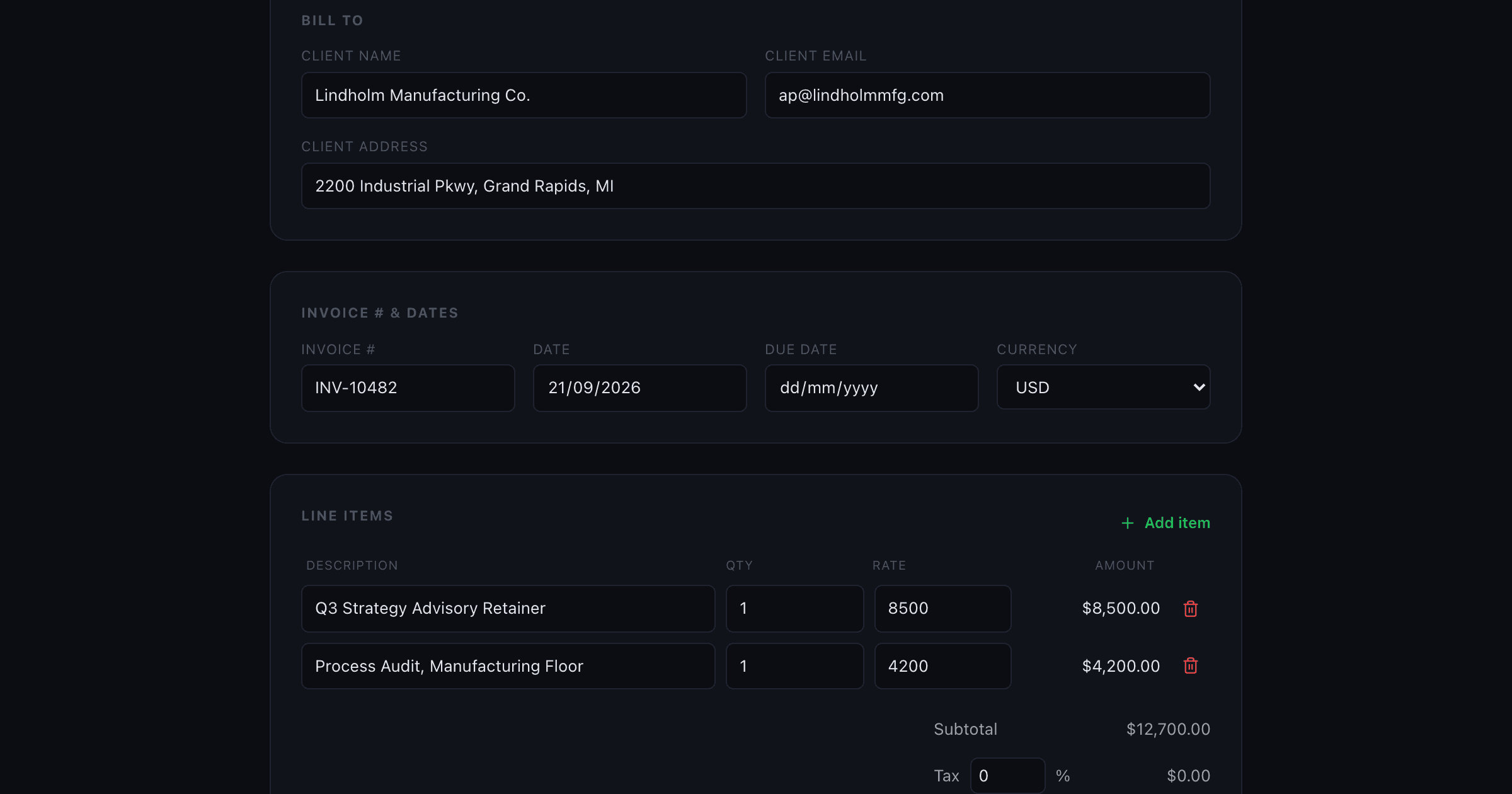
Every free invoice generator, this site's Invoice Generator included, does the same one job: it takes your business info, a client, some line items, and a tax rate, and hands you back a PDF. That PDF is what you email to your client. It is not, on its own, a QuickBooks Online record.
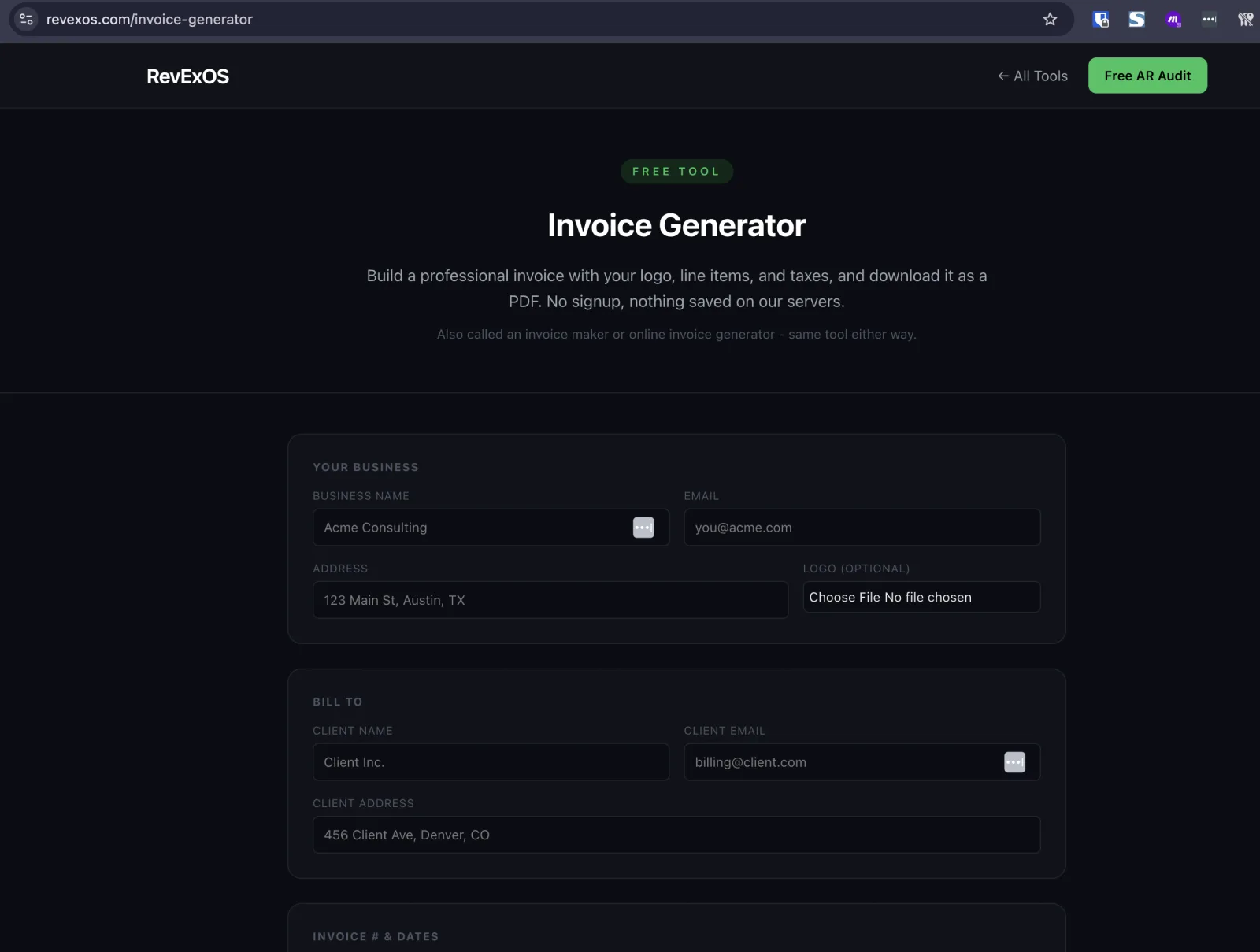
That distinction matters more than it sounds like it should, because a lot of people who search for "invoice generator quickbooks" are actually asking a slightly different question without realizing it: they want the invoice to also show up in their books, not just in their client's inbox. A PDF does not do that by itself. Here is exactly what does, for both a single invoice and a batch of them.
Option 1: Enter It Manually (Fine for One-Off Invoices)
If you send a handful of invoices a month, the fastest path is the boring one: build the invoice with the free generator, download the PDF to send to your client, then open QuickBooks Online and create the matching invoice by hand.
- In QuickBooks Online, go to + New > Invoice.
- Pick or add the customer, matching the client name you used in the generator.
- Re-enter each line item: description, quantity, rate. QuickBooks calculates the amount for you.
- Set the same invoice date, due date, and tax rate you used in the generator so the two documents match exactly.
- Save and send, or just save if you already emailed the generator's PDF directly.
This takes two or three minutes per invoice. It does not scale past a handful a month, and it is the kind of manual re-entry that introduces mismatches: a typo in a rate, a due date that does not match the PDF sitting in your client's inbox, a line item you forgot. For low volume, it is still the right call. For anything more than that, use option 2.
Option 2: Bulk-Import as CSV (For a Batch, or When You Want a Paper Trail)
QuickBooks Online has a real CSV import feature for invoices, and this site has a second free tool built specifically to feed it: the Invoice Parser. The workflow looks like this:
- Build and download your invoice PDF from the Invoice Generator as usual, and send it to your client.
- Take that same PDF (or a batch of several invoices you have already sent) and upload it to the Invoice Parser. It reads the PDF and extracts the invoice number, dates, customer, line items, and totals automatically, GPT-4o vision under the hood, no manual retyping.
- Review the extracted fields on screen (everything is editable if anything needs a fix), then click Add to Export Batch. Repeat for every invoice you want in this import.
- Set the export format to QuickBooks Online-ready CSV and download it.
That export produces a CSV with these exact columns, one row per line item with the invoice header repeated: Invoice No, Customer, Invoice Date, Due Date, Terms, Item(Product/Service), Item Description, Item Quantity, Item Rate, Item Amount, Currency. This is a best-effort match to QuickBooks Online's own documented bulk-import headers, not a guarantee against every account's exact mapping, so it is worth a quick check against your own import settings the first time you run it.
Importing the CSV into QuickBooks Online
- Log in to QuickBooks Online and open the Import center from the left navigation (or the gear icon, depending on your QBO layout).
- Select Invoices as the data type.
- Click Browse, upload the CSV you just downloaded, and click Next.
- On the mapping screen, match each column to its QuickBooks field. If the headers match QuickBooks' own sample file, most of this maps automatically; if a column shows as unmapped, pick the right field from the dropdown next to it.
- Review the summary: QuickBooks tells you how many invoices it found and how many new customers it will create. Check that number against what you expected before continuing.
- Click Complete import.
A couple of practical limits worth knowing before you batch a large pile of invoices: QuickBooks Online caps CSV invoice imports at 100 invoices per file, so split anything larger into multiple runs. And because the customer name has to match an existing QuickBooks customer (or QuickBooks will create a new one), keep the Customer values in your export consistent with how you already name that client in QuickBooks, otherwise you end up with duplicate customer records for the same company under two slightly different spellings.
Common Import Errors and What Causes Them
"Some columns show as unmapped." This happens when your CSV headers do not exactly match QuickBooks' expected field names. The Invoice Parser's export uses Invoice No, Customer, Invoice Date, Due Date, Terms, Item(Product/Service), Item Description, Item Quantity, Item Rate, Item Amount, and Currency as a best-effort match to QuickBooks' own sample file, but QuickBooks accounts differ slightly in which fields they expose depending on plan tier and region. If a column lands unmapped on the mapping screen, just pick the matching field manually from the dropdown, it is a one-time fix per column, not per row.
"It created a new customer instead of matching an existing one." QuickBooks matches customers by exact name string. If your books have "Acme Inc." and your CSV says "Acme Inc" (no period) or "Acme, Inc.", QuickBooks treats those as three different customers. Before importing, open the CSV and check the Customer column against your existing QuickBooks customer list, not against how the client wrote their own name on a purchase order.
"Item/Product line shows as a generic service instead of the actual line item description." QuickBooks Online expects Item(Product/Service) to reference something in your existing products and services list. If the value in that column does not match an existing item, QuickBooks will either reject the row or create a new generic item. For invoices with custom, one-off line items (common for services businesses), it is often faster to set Item(Product/Service) to a generic entry like "Consulting Services" you already have set up, and let Item Description carry the actual specifics of what was billed.
"Due date is off by the wrong number of days." This is almost always a terms mismatch, not a math error. QuickBooks calculates due date from the Terms field (Net 15, Net 30, Net 60) applied to the invoice date, so if the CSV's Due Date column and the Terms column disagree, double-check which one QuickBooks actually used, since some import configurations recalculate the due date from terms rather than reading the literal date in the file.
Why Two Tools Instead of One
It would be simpler to promise that a single free generator can also produce a QuickBooks-ready CSV straight out of the gate. It cannot, because a generator has no invoice to read yet at the point you are filling it in. What it can do is chain into a tool that already solved that exact problem: the same Invoice Parser that extracts data from any invoice you upload, whether it came from this site's generator, a client's invoice to you, or a scanned paper original, exports the identical QuickBooks-ready format. Build with one tool, reconcile with the other, and neither one asks for a signup or a credit card.
If your client accepted a quote before this invoice existed, there is a faster path than starting the generator from scratch: the Quote Generator has a one-click "convert to invoice" button that carries the line items straight over.
Free Tool Details
The Invoice Generator and Invoice Parser are both free, with the same limits: 2 uses a day with no signup, 5 a day total once you share an email. Nothing you enter is saved on RevExOS's servers. The generator renders your PDF entirely in your browser; the parser processes uploaded files in memory and never writes them to disk. Only an anonymous usage count (timestamp, tool, file type or page count) is logged to keep the tools free and abuse-free.
Frequently Asked Questions
- Can I import a PDF invoice directly into QuickBooks Online?
- No. QuickBooks Online's bulk import only accepts CSV files. Run the PDF through the free Invoice Parser first to extract the data and export a QuickBooks-ready CSV, or enter a single invoice manually.
- How many invoices can I import into QuickBooks Online at once?
- Up to 100 invoices per CSV file. Larger batches need to be split into multiple import runs.
- Will the CSV column mapping always match my QuickBooks account exactly?
- It's a best-effort match to QuickBooks Online's documented bulk-import headers. Check the mapping screen during import and adjust any column that doesn't auto-map correctly.
 QuickBooks Online