How to Get an Invoice You Built With a Free Generator Into Xero
A free invoice generator gives you a PDF, not a Xero record. Here's the manual path for a single invoice and the real bulk-CSV path, including the two gaps you need to fill in yourself.
RevExOS
Q2C Consulting
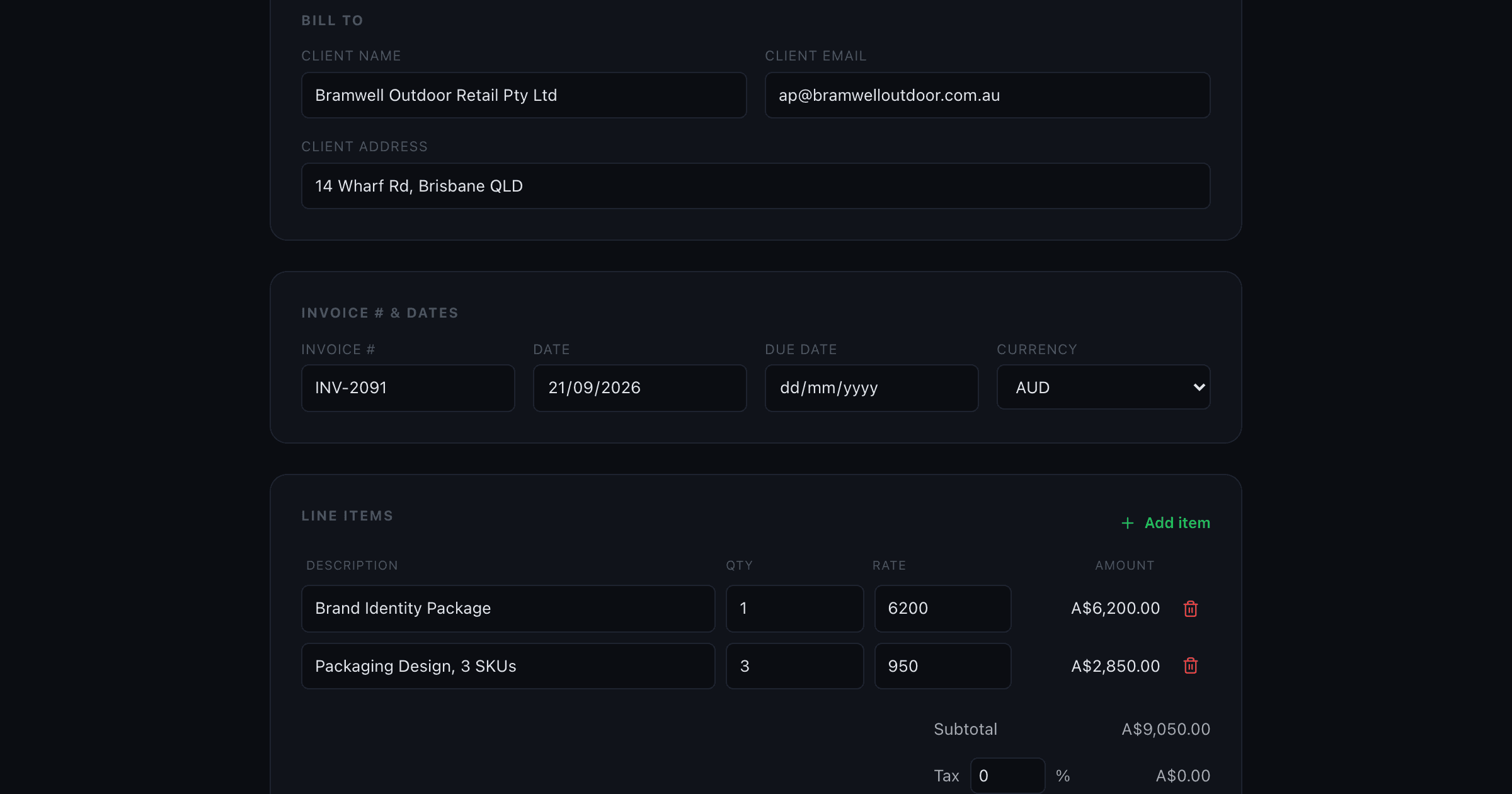
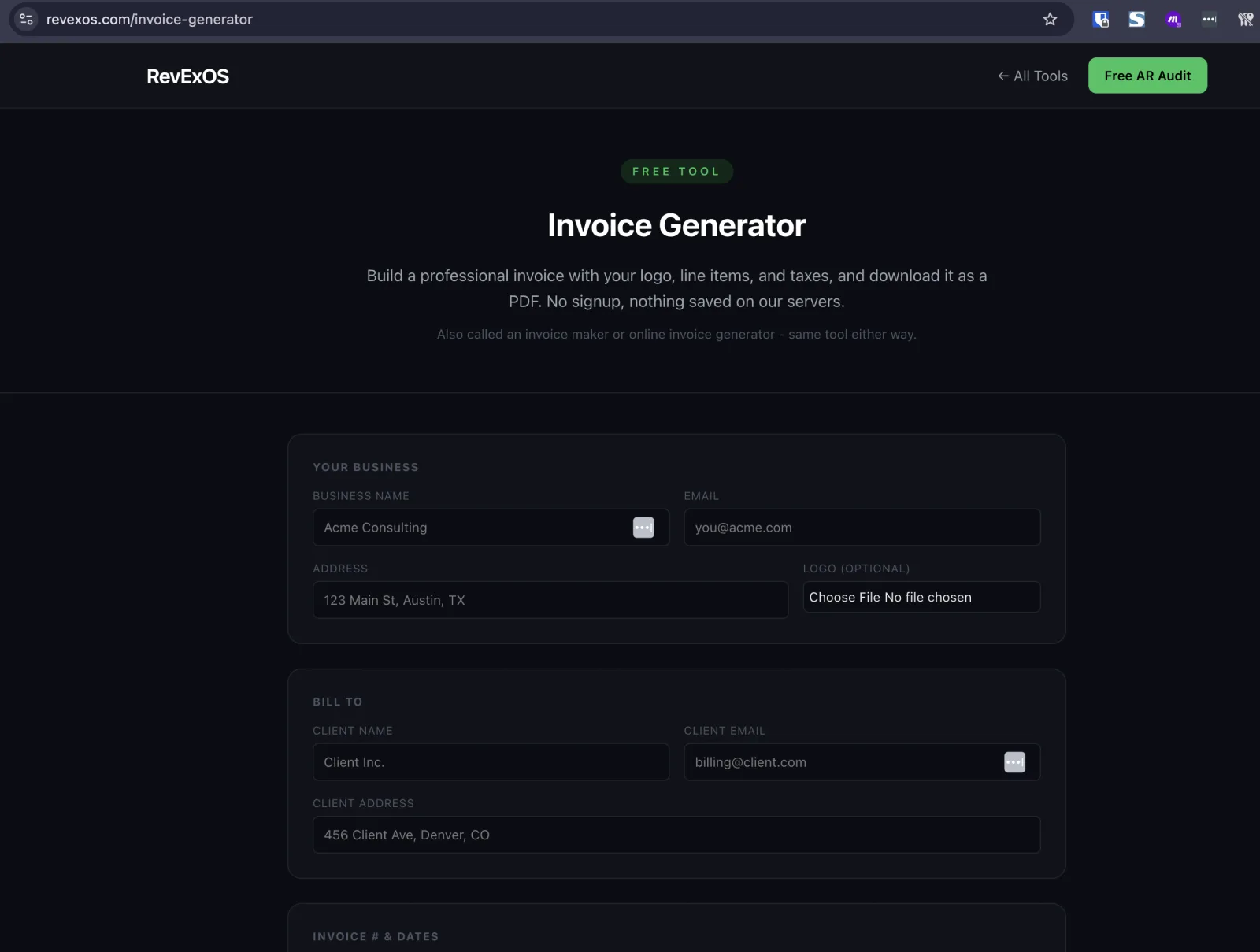
A free invoice generator, including this site's own Invoice Generator, gives you a PDF. That is exactly what a client needs to receive an invoice. It is not what Xero needs to record one, since Xero has no idea the PDF exists until you either type it in or feed it a CSV in the format Xero expects. Here is both paths, done properly, including the two spots where Xero's real import template is stricter than a generic export will be.
Option 1: Enter It Manually (Fine for a Handful of Invoices)
For low volume, just re-key it:
- In Xero, go to Business > Invoices > New Invoice.
- Select or add the contact, matching the client you used in the generator.
- Re-enter each line item description, quantity, and unit amount.
- Match the invoice date, due date, and reference number to what is on the PDF you sent.
- Approve and send, or just approve if the PDF already went out separately.
This is fine at low volume. It stops being fine once you are sending more than a handful a month, both because of the time cost and because manual re-entry is exactly where a due date or a rate quietly drifts from what your client actually received.
Option 2: Bulk-Import as CSV
This site's Invoice Parser has a Xero-ready CSV export built for exactly this. The workflow:
- Build and send your invoice PDF from the Invoice Generator as usual.
- Upload that PDF (or a batch of several) to the Invoice Parser. It extracts the contact name, invoice number, dates, line items, and totals automatically using Claude vision, and shows you an editable review screen before anything is finalized.
- Fix anything that needs it, click Add to Export Batch, and repeat for each invoice in this run.
- Set the export format to Xero-ready CSV and download it.
That export produces these exact columns: *ContactName, *InvoiceNumber, *InvoiceDate, *DueDate, Description, *Quantity, *UnitAmount, AccountCode, Currency. The asterisks mark Xero's own required fields.
Two Gaps You Need to Fill In Before Importing
Be honest with yourself about these two, because they are the difference between a clean import and a rejected file:
AccountCode is left blank on purpose. The parser has no way to know your chart of accounts, so this column ships empty. Open the CSV before uploading and fill in the account code you use for revenue or sales on every row (or a formula in a spreadsheet if the code is the same for all rows in a batch).
Xero's own official import template also includes a TaxType column, and this export does not generate one. Either add that column yourself with your standard tax rate code before uploading, or leave it out and set the tax treatment manually once the bills land in Xero as drafts (see the next step). Skipping this quietly is how invoices end up importing with no tax applied at all.
Importing the CSV into Xero
- Go to Business (or Purchases, depending on whether you are recording this as a sales invoice or a bill) > Bills, then New bill > Import from CSV.
- If you have not already matched Xero's column order, download Xero's own import template first and paste your data into it without renaming any of the headers, this avoids most of the file-rejection issues people run into.
- Save the file as CSV with UTF-8 encoding. Xero rejects
.xlsxfiles outright. - Drag the file in or click Select File.
- Choose whether the amounts in
UnitAmountare tax-inclusive or tax-exclusive, matching how you priced the invoice. - Click Confirm.
Two things to expect afterward: everything you import lands as a draft, not a finalized invoice, so you still need to review and approve each one before it counts toward your books. And if you are importing more than 500 rows in one go, Xero recommends splitting the file, worth knowing before you try to push a full quarter's invoices through in one file.
Common Import Errors and What Causes Them
"File rejected before it even reaches the mapping screen." Xero's CSV importer is strict about the header row: *ContactName, *InvoiceNumber, *InvoiceDate, *DueDate, Description, *Quantity, *UnitAmount, AccountCode, TaxType have to appear exactly as Xero's template spells them, asterisks included on the required ones. If you renamed a column, reordered them, or the file saved as .xlsx instead of .csv, Xero rejects it outright rather than trying to guess your intent.
"Everything imported with no tax applied." This is the TaxType gap mentioned above showing up after the fact. Since the Invoice Parser's export does not generate a TaxType column, anything you import without adding one lands with no tax code set. Check a sample invoice in the draft queue before approving the whole batch, catching it there is much faster than fixing it invoice by invoice after everything has already been approved.
"AccountCode column is empty and Xero won't let me approve the draft." This is expected, not a bug: the parser has no way to know your chart of accounts, so it leaves this column blank by design. Open the CSV in a spreadsheet before uploading, and either fill in your standard revenue account code down the whole column (a single formula works if every row uses the same code) or set it manually on each draft invoice inside Xero after import.
"Contact wasn't matched to an existing customer." Like QuickBooks, Xero matches on the literal string in ContactName. "Acme Inc" and "Acme, Inc." are different contacts to Xero even though they are the same client to you. Check the ContactName column against your actual Xero contact list before uploading, not against how the client's own letterhead spells their name.
Why This Takes Two Tools
A generator only has the fields you typed into it, it has no invoice document to read, so it cannot produce an import-ready export on its own. The Invoice Parser solves a different problem, reading structured data back out of any invoice, whether it came from this site's generator, a client's bill to you, or a scanned paper original, which is exactly what a bulk import needs. Build with one tool, reconcile with the other.
If the invoice started life as a quote your client accepted, skip the re-entry entirely: the Quote Generator has a one-click convert-to-invoice button that carries the line items over before you ever touch the parser.
Free Tool Details
The Invoice Generator and Invoice Parser are both free: 2 uses a day with no signup, 5 a day total once you share an email. Nothing is saved on RevExOS's servers, the generator's PDF renders entirely in your browser and the parser processes uploads in memory only. Only an anonymous usage count is logged to keep the tools free and abuse-free.
Frequently Asked Questions
- Why is the AccountCode column blank in the Xero export?
- The tool has no way to know your chart of accounts, so it leaves AccountCode empty for you to fill in with your own revenue/sales code before importing.
- Does the Xero CSV export include tax information?
- Not currently. Xero's own template includes a TaxType column this export doesn't generate, so add one manually or set the tax rate after the bill imports as a draft.
- Do invoices import directly into my Xero books, or do they need approval?
- They import as drafts. You still need to review and approve each one in Xero before it counts toward your books.
 Xero
Xero