How to Reconcile Stripe Payouts in QuickBooks and Xero
A Stripe payout bundles many payments minus fees, refunds, and disputes. How to reconcile each payout to its invoices in QuickBooks Online and Xero.
RevExOS
Q2C Consulting
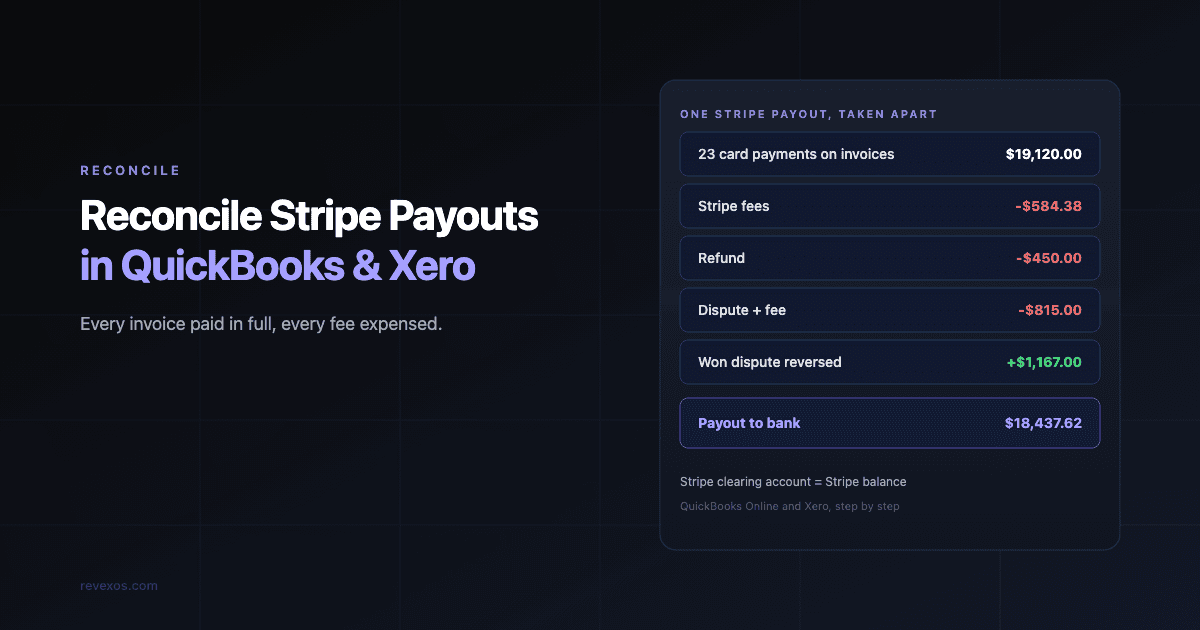
Your bank statement shows a deposit from Stripe for $18,437.62. Your accounting system shows 23 open invoices that customers paid by card this week, for a total of $19,120.00. The two numbers will never match, and that is expected.
A Stripe payout is not a payment. It is a bundle: every charge that settled in a period, minus Stripe's fees, minus any refunds, minus any disputed charges, sometimes plus a reversed dispute you won, paid to your bank as one amount. Reconciling it means taking the bundle apart so each invoice is marked paid for its full amount and the fees land in an expense account.
This is the payment processor version of cash application, and it is one of the most common reasons month-end close takes longer than it should for firms that accept cards.
Why the payout never equals the invoices
Take a simple week:
| Item | Amount |
|---|---|
| 23 card payments on invoices | $19,120.00 |
| Stripe processing fees | -$584.38 |
| One refund to a customer | -$450.00 |
| One dispute (chargeback) | -$800.00 |
| Dispute fee | -$15.00 |
| Won dispute from last month, reversed back | +$1,167.00 |
| Payout to bank | $18,437.62 |
The bank sees one line. Your ledger needs at least four kinds of entry: 23 invoice payments, fees, a refund, and two dispute movements. If you record the bank deposit as "Stripe income $18,437.62", revenue is wrong, the 23 invoices stay open, and fees are invisible.
Fees depend on your pricing. US card pricing for standard accounts starts at 2.9% plus 30 cents per successful charge, with extra for international cards and currency conversion, and a fee on each dispute. Check your own Stripe pricing page rather than assuming.
The principle: use a Stripe clearing account
Both QuickBooks and Xero handle this the same way in principle. You create a clearing account that represents your Stripe balance, which is money Stripe holds for you before it pays out.
- Customer pays an invoice by card. Record the full invoice amount as paid, deposited to the Stripe clearing account. The invoice closes.
- Stripe takes fees. Record the fees as an expense, paid from the Stripe clearing account.
- Refunds and disputes reduce the clearing account.
- Stripe pays out. Record a transfer from the Stripe clearing account to your bank account, for the payout amount.
- The bank feed deposit matches that transfer exactly.
If everything is recorded, the clearing account balance equals your actual Stripe balance. When it does not, the difference tells you something is missing. That single check is the whole reconciliation.
Getting the breakdown from Stripe
Everything you need is in Stripe; the work is getting it out in the right shape.
- Payout reconciliation report (Dashboard, Reports): for each payout, lists the charges, refunds, disputes, and fees it contains. This is the report to work from, and it is available for accounts on automatic payouts.
- Balance transactions: the underlying records. Through the API, you can list the balance transactions for a specific payout, each with its gross amount, fee, and net amount.
- Invoice or metadata on the charge: if you use Stripe Invoicing, each charge links to a Stripe invoice. If you take card payments through your accounting system's payment link, the charge usually carries the accounting invoice number in its description or metadata. That link is what lets you match a charge to an invoice without guessing.
If your charges do not carry an invoice reference, fix that first. Every payment link or checkout session should pass your invoice number into the charge description or metadata. Without it, matching falls back to amount and customer name, which fails as soon as two customers pay the same amount on the same day.
QuickBooks Online
The QuickBooks approach, with a clearing account:
Setup, once:
- In the chart of accounts, create a Bank type account called "Stripe Clearing". It has to be a bank type so you can deposit payments into it.
- Create an expense account for "Stripe Fees" (or use an existing merchant fees account).
For each payout:
- For each invoice paid in the payout, use Receive Payment on that invoice for the full amount, with Deposit To set to Stripe Clearing.
- Create a Bank Deposit into your real bank account that includes those payments, then add negative lines for fees (to Stripe Fees), refunds, and dispute amounts. The deposit total should equal the payout.
- In the bank feed, match the Stripe deposit line to that bank deposit.
An alternative some firms use: deposit payments into Undeposited Funds (Payments to Deposit) instead of a clearing account, and group them into the bank deposit. That works for low volume but gets messy when payouts span several days, because you have to pick the right payments each time.
Connectors: QuickBooks has a native Stripe connection through its app store, and several third-party sync tools exist. They save time, but check what they post: some record the net payout as income, which leaves the invoices open. Whatever you use, the test is the same: after the sync, the invoices paid by card should show as paid, and fees should appear as an expense.
Xero
Xero treats Stripe as its own account, which suits the clearing approach.
Setup, once:
- Connect Stripe as a payment service in Xero, so invoices carry a "Pay now" button and payments made through it are known to Xero.
- Add a Stripe account in Xero (Xero can create a Stripe feed that imports your Stripe transactions into it). This account is the clearing account.
- Set up an expense account for Stripe fees.
For each payout:
- In the Stripe account, reconcile each charge against the invoice it paid. Payments made through Xero's own "Pay now" link are usually matched automatically.
- Reconcile fee lines to the Stripe fees account. A bank rule handles these automatically after the first few.
- Reconcile the payout line in the Stripe account as a transfer to your bank account.
- In your bank account, reconcile the incoming Stripe deposit against that transfer.
When the Stripe account in Xero shows the same balance as your Stripe dashboard, everything is accounted for.
The weak point in Xero is payments made outside Xero's "Pay now" flow, such as Stripe Checkout links or a separate subscription billing system. Those charges arrive in the Stripe feed without a link to the invoice, and you have to use "Find & match" on each one. Passing the invoice number into the charge description helps a lot here too.
Refunds, disputes, and currency
Refunds. A refund should reverse the payment on the specific invoice (or be recorded as a credit note refund), paid from the clearing account. Do not net it into the next payout as a fee.
Disputes. When a customer disputes a charge, Stripe takes the charge amount plus a dispute fee from your balance. Record the amount as a receivable back from Stripe or reopen the customer's balance, and the fee as an expense. If you win, Stripe returns the amount (the dispute fee may or may not be returned, depending on your pricing), and you reverse the entry.
Currency. If you charge in one currency and Stripe pays out in another, the payout includes conversion. Record invoice payments in the invoice currency and let the difference between the converted amount and the payout fall to an FX gain or loss account. Stripe's reports show both the charge currency and the settlement amount.
The monthly check
Before closing the month, do one check: does the Stripe clearing account balance in your ledger equal the available plus pending balance in Stripe on the last day of the month?
- If yes, you are done.
- If the ledger is higher, a payout, fee, or refund has not been recorded.
- If the ledger is lower, a payment was recorded in the ledger but not through Stripe, or recorded twice.
Also check for invoices still open that Stripe says were paid. Export the charges for the month with their invoice references and compare them with your open invoices list. Anything in both lists is an unapplied payment, which means a customer is probably getting a reminder for an invoice they already paid.
For single invoices that look wrong, the invoice vs payment reconciliation tool quickly shows whether it is paid in full, short paid, or overpaid, which is often all you need to decide the next step.
When to automate
Doing this by hand is reasonable up to a few dozen card payments a month. Beyond that, the steps above are mechanical and a good fit for automation:
- Pull each payout's balance transactions from the Stripe API.
- Match each charge to an invoice by the reference in its metadata.
- Post payments, fees, refunds, and the transfer to the accounting system through its API.
- Send anything unmatched to a review queue, with the charge details attached.
That is the same shape as the dunning workflow built in n8n: a scheduled trigger, a few API calls, and a clear rule for what needs a person. If you are choosing between QuickBooks and Xero tools for the rest of accounts receivable, the comparisons for QuickBooks AR automation and Xero AR automation cover what the add-ons do and do not handle.
Reconciliation is the reconcile stage of the lead-to-cash cycle. When it runs cleanly, the numbers that reach revenue reporting are the right ones, and no customer is chased for money you already have.
Frequently Asked Questions
- Why doesn't my Stripe payout match my invoices?
- A Stripe payout bundles every charge that settled in a period, minus Stripe fees, refunds, and disputes, and sometimes plus reversed disputes. The bank sees one net amount, so it will almost never equal the total of the invoices paid by card.
- What is a Stripe clearing account?
- A clearing account in your accounting system that represents the money Stripe holds for you. Invoice payments are deposited into it at full value, fees and refunds come out of it, and each payout is recorded as a transfer from it to your bank. Its balance should equal your Stripe balance.
- How do I record Stripe fees in QuickBooks Online?
- Deposit customer payments into a Stripe clearing account (a Bank type account), then create a bank deposit for each payout that includes those payments and adds the Stripe fees as a negative line coded to a merchant fees expense account. The deposit total should equal the payout.
- How do I reconcile Stripe in Xero?
- Connect Stripe as a payment service and add a Stripe account in Xero. Reconcile each charge against its invoice and each fee to a fees account inside the Stripe account, record each payout as a transfer to your bank account, then match the bank deposit to that transfer.
- Which Stripe report should I use for reconciliation?
- The payout reconciliation report in the Stripe Dashboard, which lists the charges, refunds, disputes, and fees included in each payout. Through the API, the balance transactions for a payout give the same breakdown with gross, fee, and net amounts.
 QuickBooks Online
 Xero
Xero Stripe